Tutorial
Time required : 30 minutes
Pre-requisites : Basic JavaScript and HTML. Some Canvas experience useful.
What is covered : The basics of three.js and using the Particle object.
Now updated for three.js revision 48
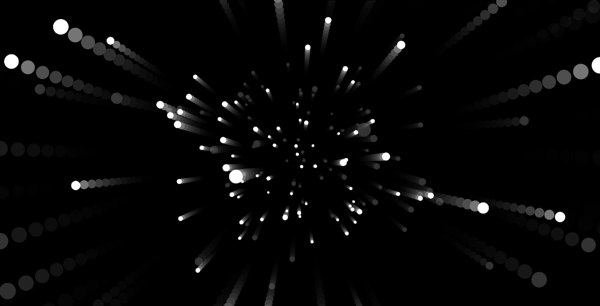
Remember FastKat? Wanna know how you’d make it yourself? Well it’s quite easy to create a similar effect with three.js and particles. And as particles are the simplest 3D objects you can make, this is a fun way to get started with this powerful library.
In this tutorial, we’ll set up the core elements in three.js and fill the world with loads of white particles. Yes, that’s right! It’s your basic star-field effect. What’s not to like?
Setting up the page
Apart from three.js1, there’s just one HTML file and I’ve liberally peppered it with comments throughout so hopefully it’s easy to follow.
First we set up the HTML, some simple CSS rules, and import the three.js file.
1 2 3 4 5 6 7 8 9 10 11 12 13 14 15 16 17 18 | <!DOCTYPE HTML> <html lang="en"> <head> <title>three.js particle tutorial</title> <meta charset="utf-8"> <style type="text/css"> body { background-color: #000000; margin: 0px; overflow: hidden; } </style> </head> <body> <script src="Three.js"></script> |
Variables
Then we declare our global variables :
20 21 22 23 24 25 26 27 28 29 30 31 32 | <script> // the main three.js components var camera, scene, renderer, // to keep track of the mouse position mouseX = 0, mouseY = 0, // an array to store our particles in particles = []; // let's get going! init(); |
Initialising three.js
The init() function sets up the three main objects that we need to create in order to start working with three.js:
- scene – the scene contains all the 3D object data
- camera – the camera has a position, rotation and field of view (how wide the lens is)
- renderer – figures out what the objects in the scene look like from the point of view of the camera
Camera
34 35 36 37 38 39 40 41 42 | function init() { // Camera params : // field of view, aspect ratio for render output, near and far clipping plane. camera = new THREE.PerspectiveCamera(80, window.innerWidth/window.innerHeight, 1, 4000); // move the camera backwards so we can see stuff! // default position is 0,0,0. camera.position.z = 1000; |
The first parameter for the Camera constructor is field of view. This is an angle in degrees – the larger the angle, the wider the virtual camera lens.
The second parameter is the aspect ratio between the width and the height of the output. This has to match the aspect of the CanvasRenderer, which we’ll come to in a moment.
The camera can only see objects within a certain range, defined by near and far, set here to 1 and 4000 respectively. So any object that is closer than 1 or further away than 4000 will not be rendered.
By default the camera is at the origin of the 3D world, 0,0,0, which isn’t very useful because any 3D object you create will also be positioned at at the origin. It’s a good idea to move the camera back a bit by giving it a positive z position (z increases as it comes out of the screen towards you). In this case we’re moving it back by 1000.
Scene
44 45 46 | // the scene contains all the 3D object data scene = new THREE.Scene(); scene.add(camera); |
Note that you now have to add the camera into the scene too (older versions of three.js didn’t require this).
Renderer
50 51 52 53 54 55 56 57 | // and the CanvasRenderer figures out what the // stuff in the scene looks like and draws it! renderer = new THREE.CanvasRenderer(); renderer.setSize( window.innerWidth, window.innerHeight ); // the renderer's canvas domElement is added to the body document.body.appendChild( renderer.domElement ); |
The CanvasRenderer creates its own DOM element – it’s an ordinary 2D canvas object that we add into the document body, otherwise we wouldn’t see it. We want it to fill the whole browser window so we set its size to window.innerWidth and window.innerHeight.
Render loop
We then make the particles (we’ll look at that function later), add the mousemove listener to track the mouse position, and finally set up an interval calls the update function 30 times a second.
58 59 60 61 62 63 64 65 66 | makeParticles(); // add the mouse move listener document.addEventListener( 'mousemove', onMouseMove, false ); // render 30 times a second (should also look // at requestAnimationFrame) setInterval(update, 1000/30); |
setInterval requires a value in milliseconds, so we need to convert frames per second into mils per frame. To do that take 1000 (the number of mils in a second) and divide it by our frame rate.
Take a quick look at the update function:
70 71 72 73 74 75 76 77 78 79 | // the main update function, called 30 times a second function update() { updateParticles(); // and render the scene from the perspective of the camera renderer.render( scene, camera ); } |
We’ll look at the updateParticles function in detail later, all it does is move the particles forward.
Until renderer.render(…) method is called, you won’t see any of your 3D stuff! Remember that renderer takes care of the canvas, and draws everything into it. It figures out what things in the scene look like from the point of view of the camera and draws it all into its canvas object.
Particles!
Three.js has three main types of 3D objects : triangles, lines and particles. Particles are the easiest to work with as they represent a single point in 3D space. They can be rendered as a 2D image, like a simple circle or square, or just a bitmap image. The important thing about particles is that they look the same from any angle, but of course they get bigger and smaller depending on how far away they are!
Sometimes this sort of 3D particle is referred to as a point sprite or a bill-board.
Making the particles
80 81 82 83 84 85 86 87 88 89 90 91 92 93 94 95 96 97 98 99 100 101 102 103 104 105 106 107 108 109 110 111 112 113 114 | // creates a random field of Particle objects function makeParticles() { var particle, material; // we're gonna move from z position -1000 (far away) // to 1000 (where the camera is) and add a random particle at every pos. for ( var zpos= -1000; zpos < 1000; zpos+=20 ) { // we make a particle material and pass through the // colour and custom particle render function we defined. material = new THREE.ParticleCanvasMaterial( { color: 0xffffff, program: particleRender } ); // make the particle particle = new THREE.Particle(material); // give it a random x and y position between -500 and 500 particle.position.x = Math.random() * 1000 - 500; particle.position.y = Math.random() * 1000 - 500; // set its z position particle.position.z = zpos; // scale it up a bit particle.scale.x = particle.scale.y = 10; // add it to the scene scene.add( particle ); // and to the array of particles. particles.push(particle); } } |
The for loop iterates with zpos going from -1000 to 1000 incrementing by 20 each time.
Within the loop, we make a new material (more on that later) and then create a particle. Particles have a position property with x, y and z values (as do all three.js 3D objects).
We give each particle a random x and y position, and set its z position to the loop iterator zpos. Why don’t we just give the particle a random z position? There are reasons why we want them evenly distributed by z but I’m not going to tell you what they are yet! Not until the next instalment of this tutorial. 
We have to add our 3D objects to the scene or we won’t see them! Notice that we’re also putting them in our own array called particles. This isn’t part of three.js, it’s just so that we can keep track of our particles and do stuff with them in the update loop.
Making the particle material
All 3D objects have materials that define how they’re drawn, things like colour and alpha. Here’s where we create each particle’s material object :
90 | material = new THREE.ParticleCanvasMaterial( { color: 0xffffff, program: particleRender } ); |
We’re using a dynamic object (as defined within the {}) as the only parameter for the constructor. You’ll see this initialisation method a lot in three.js. (Pro-tip : if you want to find out what an object’s initialisation options are, check the the un-minified source.)
Believe it or not, three.js doesn’t have a circular particle material built-in. So we need to tell it how to draw a circle, and we do that by passing in the function particleRender with the necessary canvas drawing API calls:
119 120 121 122 123 124 125 126 127 | function particleRender( context ) { // we get passed a reference to the canvas context context.beginPath(); // and we just have to draw our shape at 0,0 - in this // case an arc from 0 to 2Pi radians or 360º - a full circle! context.arc( 0, 0, 1, 0, Math.PI * 2, true ); context.fill(); }; |
It might seem a bit weird to pass in a function to a material but it’s actually a really flexible system. It gets a reference to the canvas context, so we could draw any shape we want. And as the canvas’ co-ordinate system will have been scaled and translated relative to the particle, we just need to draw the shape centred at the origin. (If you haven’t used the canvas API much, this tutorial on MDN is a good start.)
Moving the particles
Now let’s look at updateParticles(), remember that this is called every update cycle right before we render.
132 133 134 135 136 137 138 139 140 141 142 143 144 145 146 147 | function updateParticles() { // iterate through every particle for(var i=0; i<particles.length; i++) { particle = particles[i]; // and move it forward dependent on the mouseY position. particle.position.z += mouseY * 0.1; // if the particle is too close move it to the back if(particle.position.z>1000) particle.position.z-=2000; } } |
The lower the mouse is, the higher the mouseY value and the faster we move each particle! And when the particles get too close to the camera, we move them to the back, so that our star-field is endless. As all good star-fields should be.
What’s next?
We’re well on our way to making a FastKat like effect, but we’re not there yet. In the original game the circles fade into the distance – this effect is called a fog filter and I’ll show you how to make one. Also see how the particles are arranged into spirals? We’ll recreate this effect using sine waves.
View the example here and get the source on github. This tutorial is part of my CreativeJS workshop series.
1 three.js revision 48. Note that the three.js API is still in flux so if you update this file, the example may not work in future. (You can get the very latest version on github if you want to risk it).